
昨天后端跑过来说阿里oss视频上传要前端自己集成直传,话不多说直接上代码
这里使用的是STSToken方式上传的,获取STS的方法需要后端去集成出来一个接口,相关文档链接在下方
相关文档点击跳转:
各语言获取STSToken的方式STS SDK支持Java、.NET、Python、PHP、Node.js和Go语言
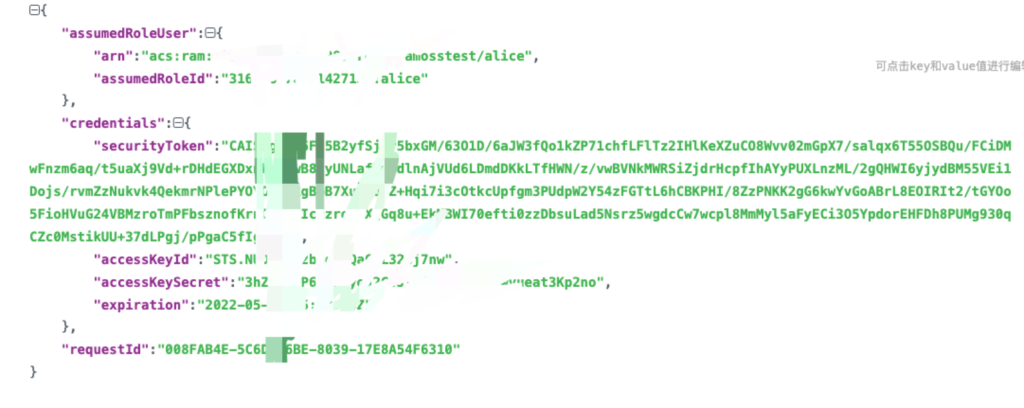
需要注意的是init方法内需要换成自己后端给的接口拿到配置信息,STStoken方式上传使用的是后端获取的临时accessKeyId跟临时secret,而不是阿里云账户固定的keyid
后端返回接口格式如下:
<template>
	<!--在此处添加渲染的内容-->
	<div>
		<el-upload class="upload-demo" ref="upload" :on-success="handleSuccess" :before-upload="beforeUpload"
			accept="video/*" :http-request="handleHttpRequest" :headers="uploadHeaders" :limit="1" :file-list="fileList"
			:show-file-list="false" action="">
			<el-button slot="trigger" size="small" type="primary" icon="el-icon-plus"
				:disabled="uploadType == 'loading' || uploadType == 'pause'" style="margin-right: 10px;">选取文件
			</el-button>
			<el-button size="small" @click="pauseUpload" type="warning" icon="el-icon-video-pause"
				v-if="uploadType == 'loading'">暂停上传
			</el-button>
			<el-button size="small" @click="resumeUpload" type="warning" icon="el-icon-refresh"
				v-if="uploadType == 'pause' || uploadType == 'error'">恢复上传
			</el-button>
			<el-button size="small" @click="clearFile" type="danger" icon="el-icon-delete"
				v-if="uploadType == 'error' || uploadType == 'success'">清除文件</el-button>
			<div slot="tip" v-if="file != null" class="el-upload-list__item-preview">{{file.name}}</div>
			<div slot="tip" class="el-upload__tip">只能上传视频文件 文件大小不超过10G</div>
			<el-progress v-if="percent > 0" :text-inside="true" :stroke-width="18" :percentage="percent"
				:status="percentType" style="margin-top: 10px;"></el-progress>
		</el-upload>
	</div>
</template>

<script type="text/ecmascript-6">
	import request from "@/service/http"
	import proxy from '@/utils/proxy'
	import qs from 'qs'
	import OSS from 'ali-oss'
	//将渲染的内容导出
	export default {
		props: {
			prefix:{
				type:String,
				default () {
					return '';
				},
			}
		},
		data() {
			return {
				region: 'oss-cn-beijing',
				bucket: '', //这里选择OSS容器
				percent: 0,
				url: '', //后台获取token地址
				ClientObj: null,
				dataObj: {},
				expiration: '',
				fileList: [],
				uploadHeaders: {
					authorization: '*'
				},
				disabled: false,
				client: null,
				isInit: false,
				uploadType: 'wait', // success 成功 error 失败 loading 上传中 pause 暂停上传 wait 未操作
				percentType: 'primary', // 进度条状态
				abortCheckpoint: null, // 断点
				fileSuccessUrl: [] //最终上传的地址
			}
		},
		watch: {
			fileSuccessUrl() {
				if (this.fileSuccessUrl.length > 0) {
					if (this.fileSuccessUrl.length == 1) {
						//拆分掉返回的uploadid
						this.$emit("input", this.fileSuccessUrl[0].substring(0, this.fileSuccessUrl[0].lastIndexOf("?")));
					} else {
						//拆分掉返回的uploadid
						this.fileSuccessUrl.forEach((item,i)=>{
							this.fileSuccessUrl[i] = this.fileSuccessUrl[i].substring(0, this.fileSuccessUrl[i].lastIndexOf("?"));
						})
						this.$emit("input", this.fileSuccessUrl);
					}
					this.$emit('success',this.fileSuccessUrl);
				}
			},
		},
		methods: {
			/**
			 * 请求接口拿到accesskeyid 等等一些配置信息 并初始化阿里oss
			 * @author 木头人下士
			 * @time 2022-05-09
			 */
			async init() { //获取Token
				this.fileList = [];
				this.file = null;
				this.uploadType = 'wait'; // success 成功 error 失败 loading 上传中 pause 暂停上传 wait 未操作
				this.percentType = 'primary'; // 进度条状态
				this.abortCheckpoint = null;
				let param = {
					userId: this.$store.state.userId
				};

				//获取sts token拿到参数配置
				let res = await request({
					url: proxy.baseURL + `/api/ali/getAliStsToken`,
					method: 'post',
					data: qs.stringify(param)
				})
				if (res.code == 0) {
					this.dataObj = {
						bucket: 'hoohui',
						region: 'oss-cn-beijing',
						accessKeyId: res.data.credentials.accessKeyId, //临时accessid
						accessKeySecret: res.data.credentials.accessKeySecret, //临时秘钥
						stsToken: res.data.credentials.securityToken,
					};
					//初始化
					this.client = new OSS(this.dataObj),
						this.isInit = true; //初始化完毕
					this.$forceUpdate();
				} else {
					this.$message.error('初始化失败')
				}
			},
			/**
			 * 上传文件前 文件验证大小 并检测是否初始化阿里oss 如未初始化则先初始化
			 * @author 木头人下士
			 * @time 2022-05-09
			 */
			async beforeUpload(file) {

				//限制的上限为10G
				const maxSize = 1024 * 1024 * 1024 * 10;
				if (maxSize < file.size) {
					this.$message.error('上传文件大小不能超过 10G!');
					return false;
				}

				if (!this.isInit) { //判断有没有初始化
					await this.init(); //初始化流程
				}
			},
			/**
			 * 上传到oss
			 * @author 木头人下士
			 * @time 2022-05-09
			 */
			async handleHttpRequest(option) { //上传OSS
				try {
					let that = this;
					that.uploadType = 'loading';
					that.percentType = 'warning';
					let file = option.file;
					that.file = file;
					that.$emit("chooseFile", file);
					//随机命名

					const random_name = that.random_string(6) + '_' + new Date().getTime() + '.' + file.name.split('.')
						.pop();
					// 分片上传文件
					await that.client.multipartUpload(that.prefix + random_name, file, {
						progress: async function(p, cpt, res) {

							// 为中断点赋值。
							that.abortCheckpoint = cpt;

							that.percent = parseInt(p * 100);

						}
					}).then(({
						res
					}) => {

						if (res.statusCode === 200) {
							// option.onSuccess(ret)
							that.fileSuccessUrl = res.requestUrls;

							that.uploadType = 'success';
							that.percentType = 'success';
						} else {

							that.uploadType = 'error';
							that.percentType = 'error';

						}
					}).catch(error => {
						that.uploadType = 'error';
						that.percentType = 'error';


					});

				} catch (error) {

					this.uploadType = 'error';
					this.percentType = 'error';


				}
			},
			/**
			 * 上传成功
			 * @author 木头人下士
			 * @time 2022-05-09
			 */
			handleSuccess(response, file, fileList) {
				this.uploadType = 'success';
				this.percentType = 'success';


			},
			/**
			 * 暂停上传
			 * @author 木头人下士
			 * @time 2022-05-09
			 */
			pauseUpload() {
				this.client.cancel();
				this.uploadType = 'pause';
				this.percentType = 'warning';
			},
			/**
			 * 清除文件
			 * @author 木头人下士
			 * @time 2022-05-09
			 */
			clearFile() {
				this.fileList = [];
				this.file = null;
				this.uploadType = 'wait';
				this.percentType = 'primary';
				this.percent = 0;
			},
			/**
			 * 恢复上传
			 * @author 木头人下士
			 * @time 2022-05-09
			 */
			async resumeUpload() {
				let that = this;
				that.uploadType = 'loading';
				that.percentType = 'warning';
				let file = that.file;
				let abortCheckpoint = that.abortCheckpoint;
				await that.client.multipartUpload(name, file, {
					checkpoint: abortCheckpoint,
					progress: (p, cpt, res) => {
						// 为了实现断点上传,您可以在上传过程中保存断点信息(checkpoint)。发生上传错误后,将已保存的checkpoint作为参数传递给multipartUpload,此时将从上次上传失败的地方继续上传。
						// 为中断点赋值。
						that.abortCheckpoint = cpt;

						// 获取上传进度。

						that.percent = parseInt(p * 100);

					},
				}).then(({
					res
				}) => {

					if (res.statusCode === 200) {

						that.fileSuccessUrl = res.requestUrls;
						that.uploadType = 'success';
						that.percentType = 'success';
					} else {
						that.uploadType = 'error';
						that.percentType = 'error';

					}
				}).catch(error => {
					that.uploadType = 'error';
					that.percentType = 'error';


				});;
			},
			/**
			 * 设置进度条状态
			 * 发现最后更新数据后页面没有达到预期效果 没有用了
			 * @author 木头人下士
			 * @time 2022-05-09
			 * @param {Object} type
			 */
			// async setPercentType(type) {
			//
			// 	this.$set(this, 'uploadType', type);
			//
			// 	switch (type) {
			// 		case 'wait' || 'loading':
			// 			this.$set(this, 'percentType', 'primary');
			// 			this.percentType = 'primary';
			// 			break;
			// 		case 'pause':
			// 			this.$set(this, 'percentType', 'warning');
			// 			this.percentType = 'warning';
			// 			break;
			// 		case 'success' || 'error':
			// 			if (type == 'success') {
			// 				this.percent = 0;
			// 			}
			// 			this.$set(this, 'percentType', type);
			// 			this.percentType = type;
			// 			break;
			// 		default:
			// 			this.uploadType = 'wait';
			// 			this.percentType = 'primary';
			// 			break;
			// 	}
			// 	await this.$forceUpdate();
			// },
			getDate() {
				const date = new Date(),
					year = date.getFullYear(),
					month = date.getMonth() > 9 ? date.getMonth() + 1 : `0${date.getMonth() + 1}`,
					day = date.getDate() > 9 ? date.getDate() : `0${date.getDate()}`,
					hh = date.getHours() > 9 ? date.getHours() : `0${date.getHours()}`,
					mm = date.getMinutes() > 9 ? date.getMinutes() : `0${date.getMinutes()}`;
				return `${year}${month}${day}${hh}${mm}`;
			},
			// 随机生成文件名
			random_string(len) {
				len = len || 32;
				let chars = 'ABCDEFGHJKMNPQRSTWXYZabcdefhijkmnprstwxyz12345678',
					maxPos = chars.length,
					pwd = '';
				for (let i = 0; i < len; i++) {
					pwd += chars.charAt(Math.floor(Math.random() * maxPos));
				}
				return pwd;
			}

		},
		components: {},
		computed: {},
		created() {},
		mounted() {},

	}
</script>

<style scoped>
	/**渲染内容的样式**/
</style>
使用方法
1:页面中引入组件
import uploadFile from "@/components/uploadFile";2:注册到页面components,当然也可以注册到全局组件这里就不介绍了
components:{
	uploadFile
},
3:html部分添加
<uploadFile ref="uploadFile" @success="successFile" @chooseFile="chooseFile" v-model="successurl"></uploadFile>4:组件使用的双向绑定,可以直接绑定一个数据就可以了
5:支持两个事件
methods:{
    //@chooseFile 监听选择文件,会把选中的文件返回
    chooseFile(file){console.log(file)},
    //@success 监听上传成功,会返回上传文件路径,这个可能是个数组,具体不清楚,oss官方文档给的是个数组,组件拿到返回值如果是数组会返回数组,如果数组为一项会直接返回文件地址字符串
    successFile(urls){console.log(urls)}
}
666
11222